Adding Team Members
Easily collaborate with your team by inviting members to your WhautoChat workspace. Follow the steps below to invite and activate team members.
🔗 Invite a Team Member
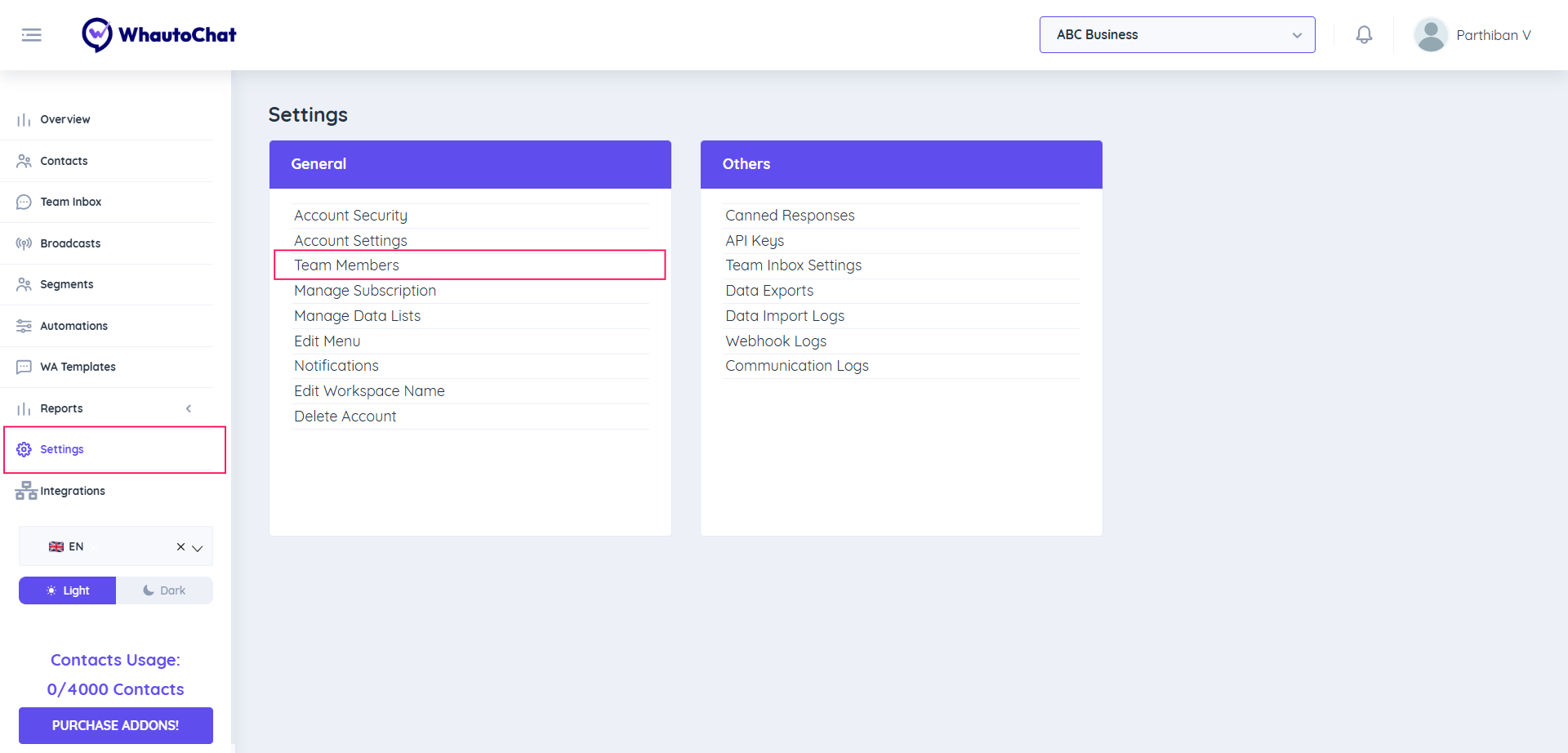
- Log in to WhautoChat and go to the Settings menu in the left sidebar.
- Under the General section, select Team Members.
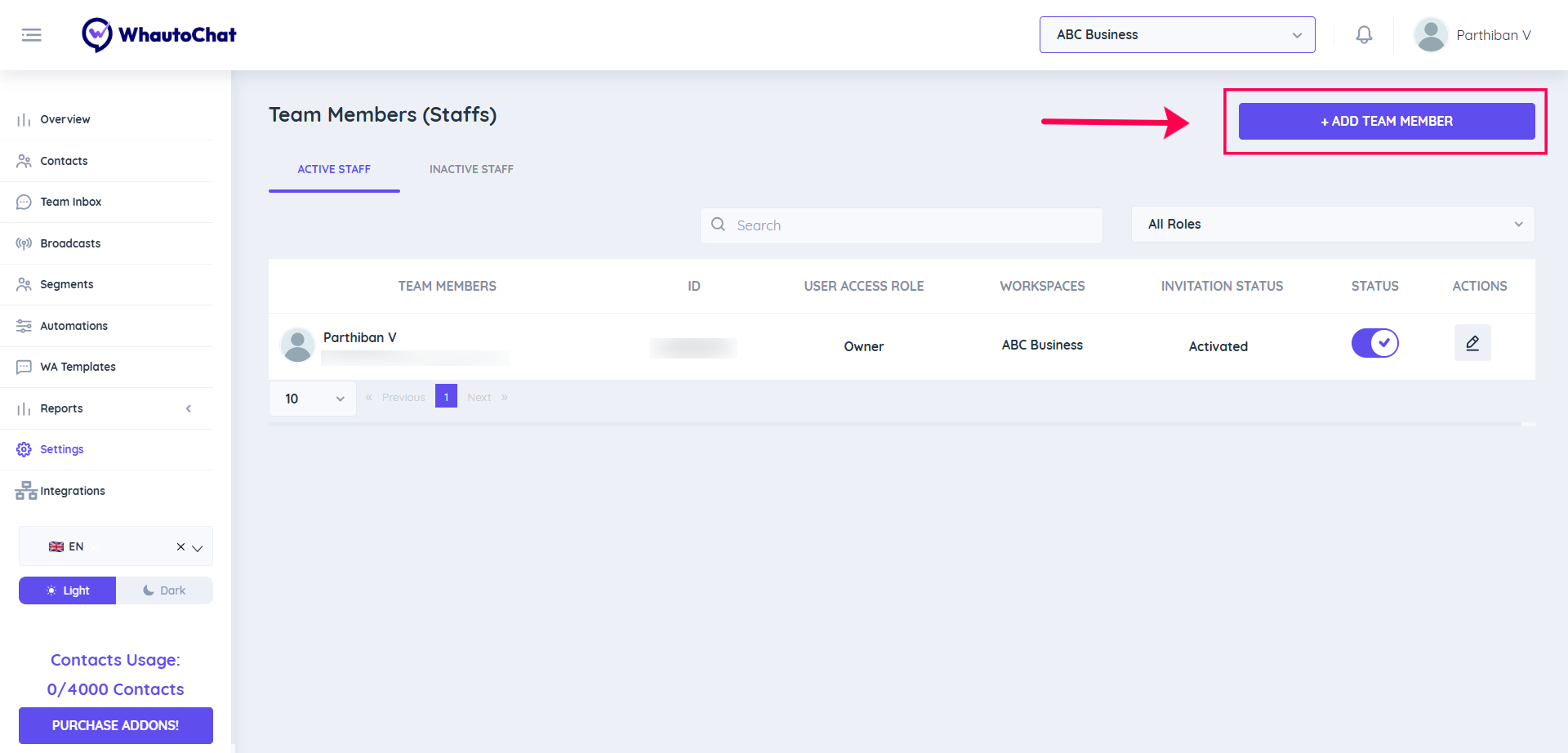
- Click the + Add Team Member button.
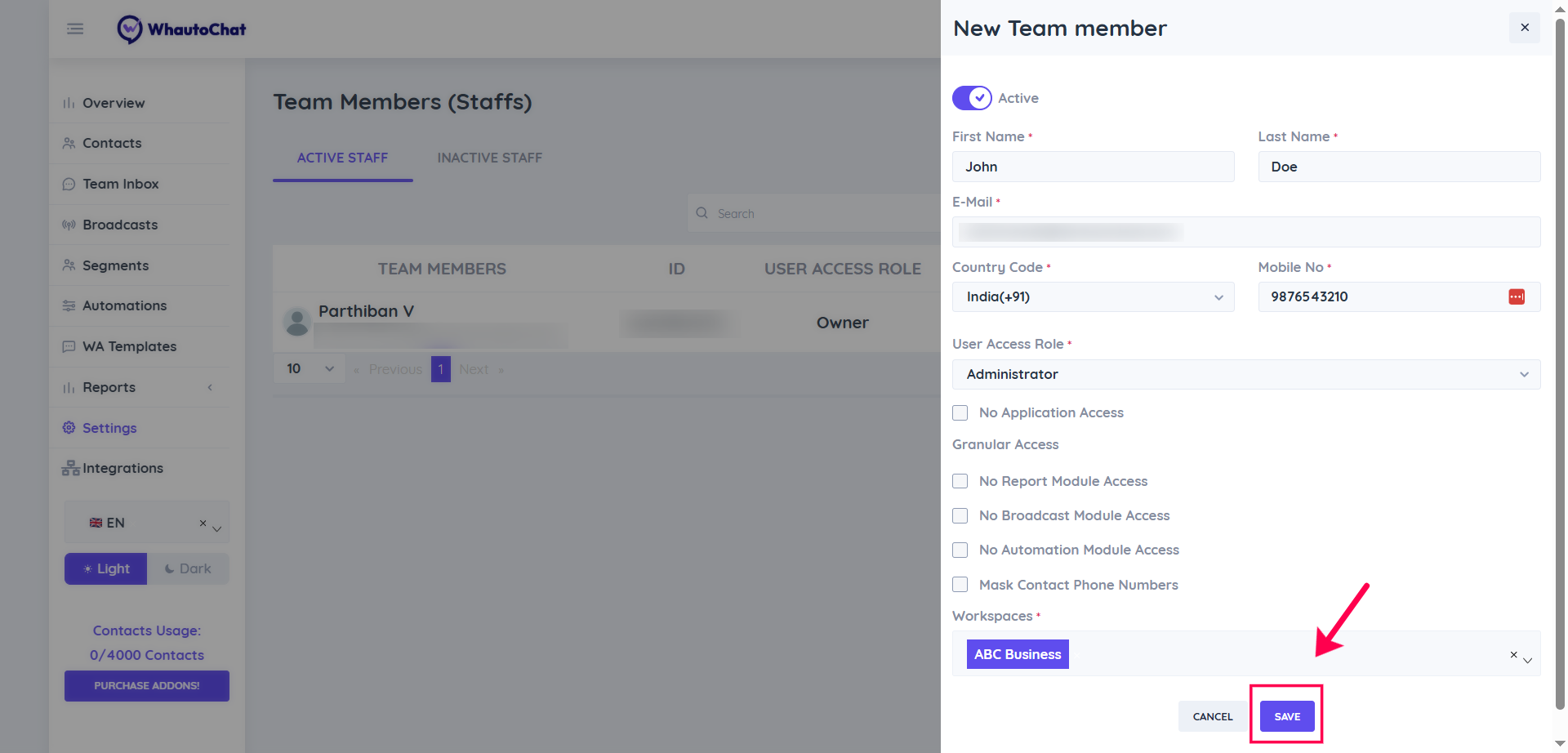
- Fill in the following details:
- Name
- Email Address
- Country Code
- Mobile Number
- User Role & Permissions
- Select Locations (if applicable)
- After entering all the details, click Save.
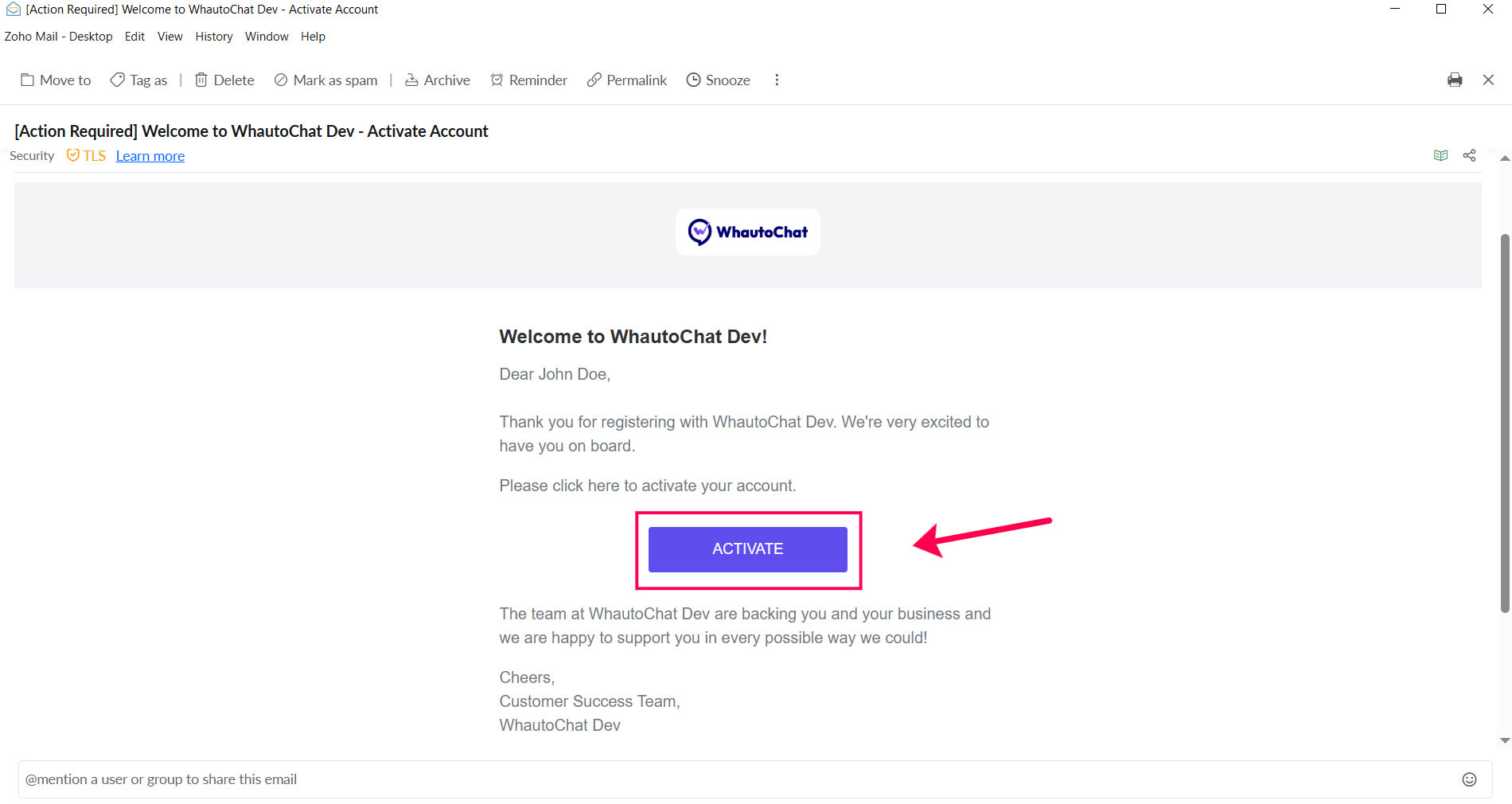
- An invitation email will be sent to the entered email address with instructions to join your team on WhautoChat.
✅ Activate a Team Member Account
Once the invitation is sent, the team member needs to activate their account:
- Check your email inbox for an invitation from WhautoChat.
Didn’t receive the email?
Go to the Team Members page and click Resend Invite next to the team member’s name.
- Click the Activate button in the email.
- You’ll be directed to a page to set your account password.
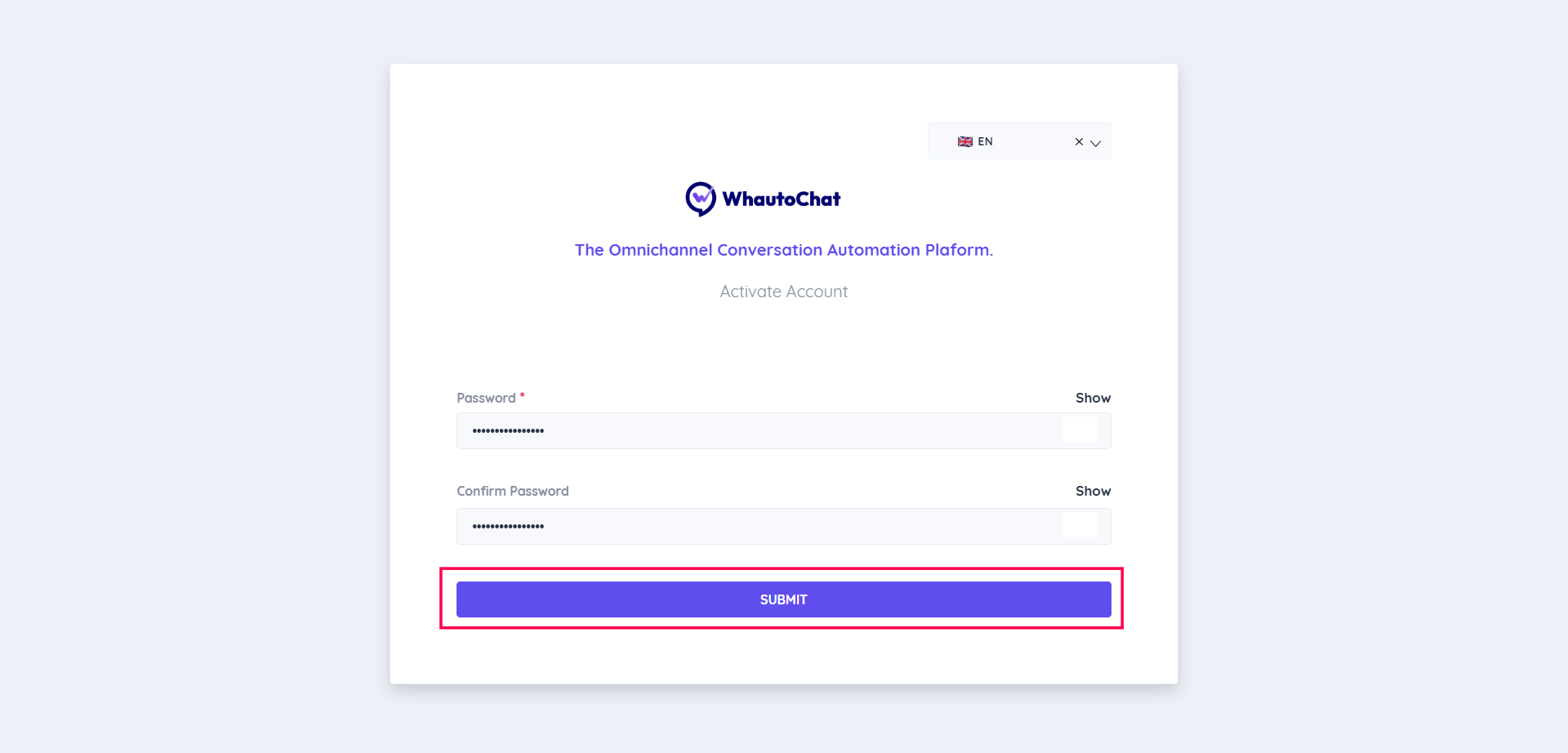
- Enter your new password, then confirm it by typing it again.
- Click Submit to complete your activation.
🚪 Log In to WhautoChat
Once activated:
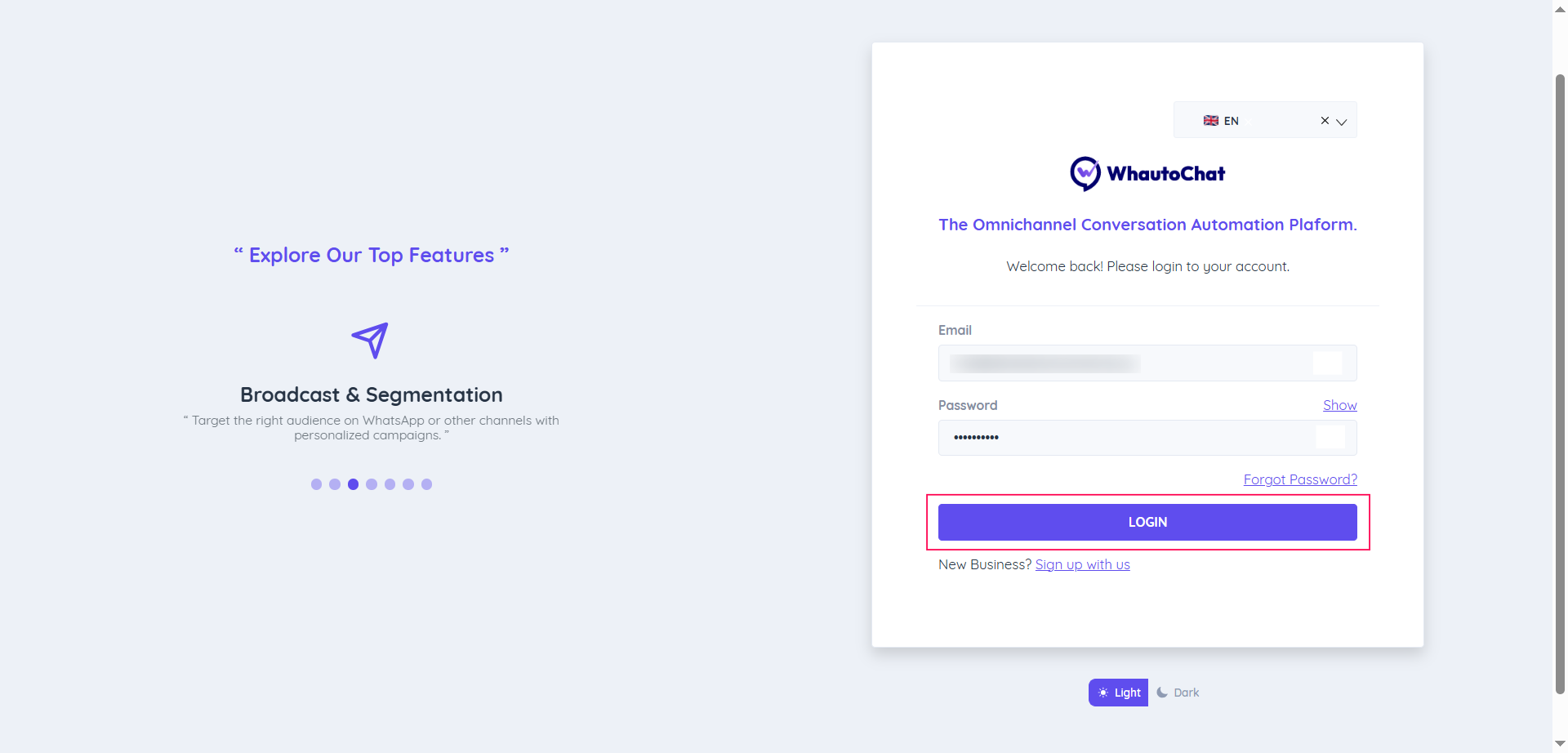
- You’ll be redirected to the Login Page.
- Enter your email address and new password.
- Click Login to access your WhautoChat account.
💬 Need Help?
Reach out to our support team anytime – we’re here to help you connect smoothly. support@whauto.chat
For detailed troubleshooting, refer to our Troubleshooting or contact support.