User Roles & Permissions
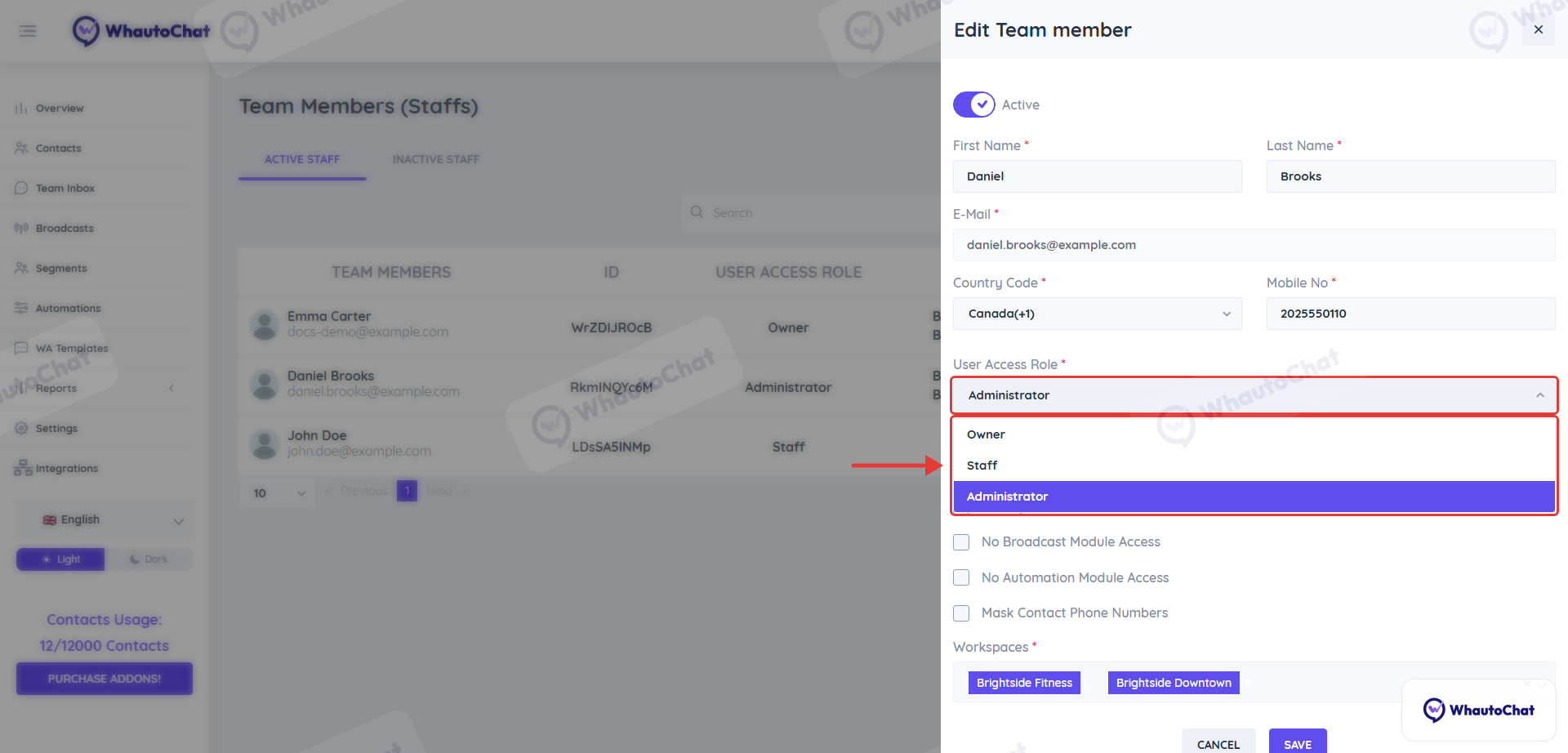
Each team member in WhautoChat is assigned a User Access Role that defines what they can view, manage, or configure. You can also fine-tune permissions using granular access controls.
🔑 Access Roles
| Role | Description |
|---|---|
| Owner | - Full control over the account and all workspaces. - Can manage billing, team members, settings, and everything else. - Typically the account creator. |
| Administrator | - Can access and manage everything like the Owner. - Has permission to update subscription and billing settings. - Ideal for managers or leads. |
| Staff | - Can use core features like chats, automations, CRM, etc. - Cannot update billing, manage subscriptions, or modify admin-level settings. - Can be limited further using Granular Access options. |
You choose the role in the User Access Role field when you add or edit a team member under Settings > Team Members.
⚙️ Granular Access
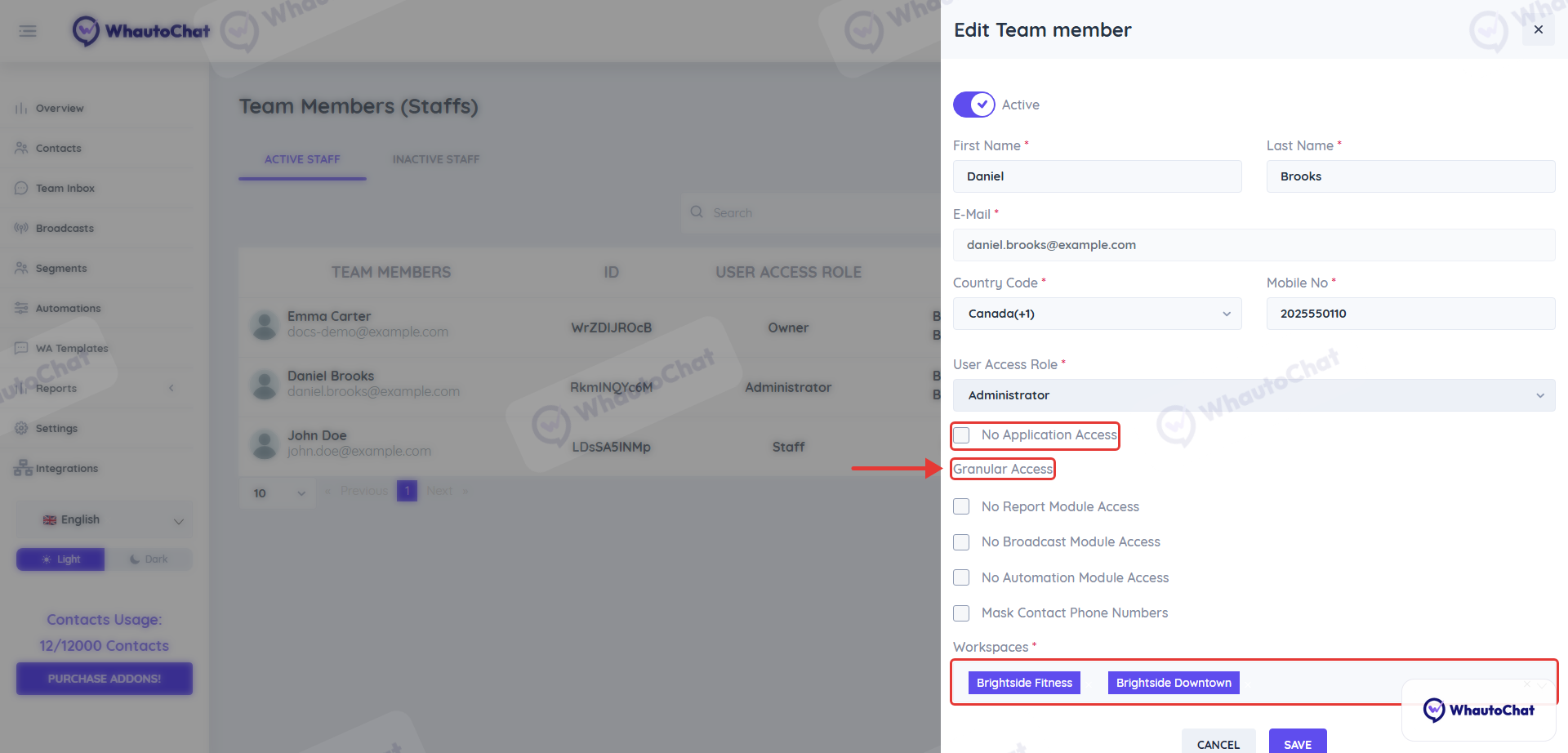
When assigning a role, you can enable additional restrictions:
- ✅ No Application Access: Prevents login but keeps the account active.
- ✅ No Report Module Access: Hides analytics and reports.
- ✅ No Broadcast Module Access: Hides the Broadcasts menu.
- ✅ No Automation Module Access: Hides the Automations menu.
- ✅ Mask Contact Phone Numbers: Displays masked phone numbers in conversations and contact lists.
ℹ️ These options are ideal when you want to onboard support staff with limited visibility.
🌐 Workspace Assignment
Each team member must be assigned to at least one Workspace to access and interact with the system. This enables isolated teams or departments to work independently within their scope.
Reach out to our support team anytime – we’re here to help you connect smoothly. support@whauto.chat
For detailed troubleshooting, refer to our Troubleshooting or contact support.