Connect your Instagram Business account to manage DMs directly inside WhautoChat – along with WhatsApp, Messenger, Telegram, and LiveChat – in a single Team Inbox.
⚠️ Before You Begin
Make sure the following settings are in place before connecting:
- Instagram Business Account
- Switch your personal account to a Professional account and select Business as the type.
- Instagram–Facebook Page Link
- Your Instagram account must be linked to a Facebook Page.
- Enable Message Access on Instagram
- Go to Settings and Privacy → Messages and Story Replies
- Open Message Controls, scroll down and Enable “Allow access to Messages”
🔗 Steps to Connect Instagram
-
Log in to WhautoChat
- Go to the WhautoChat app and log in with your credentials.
-
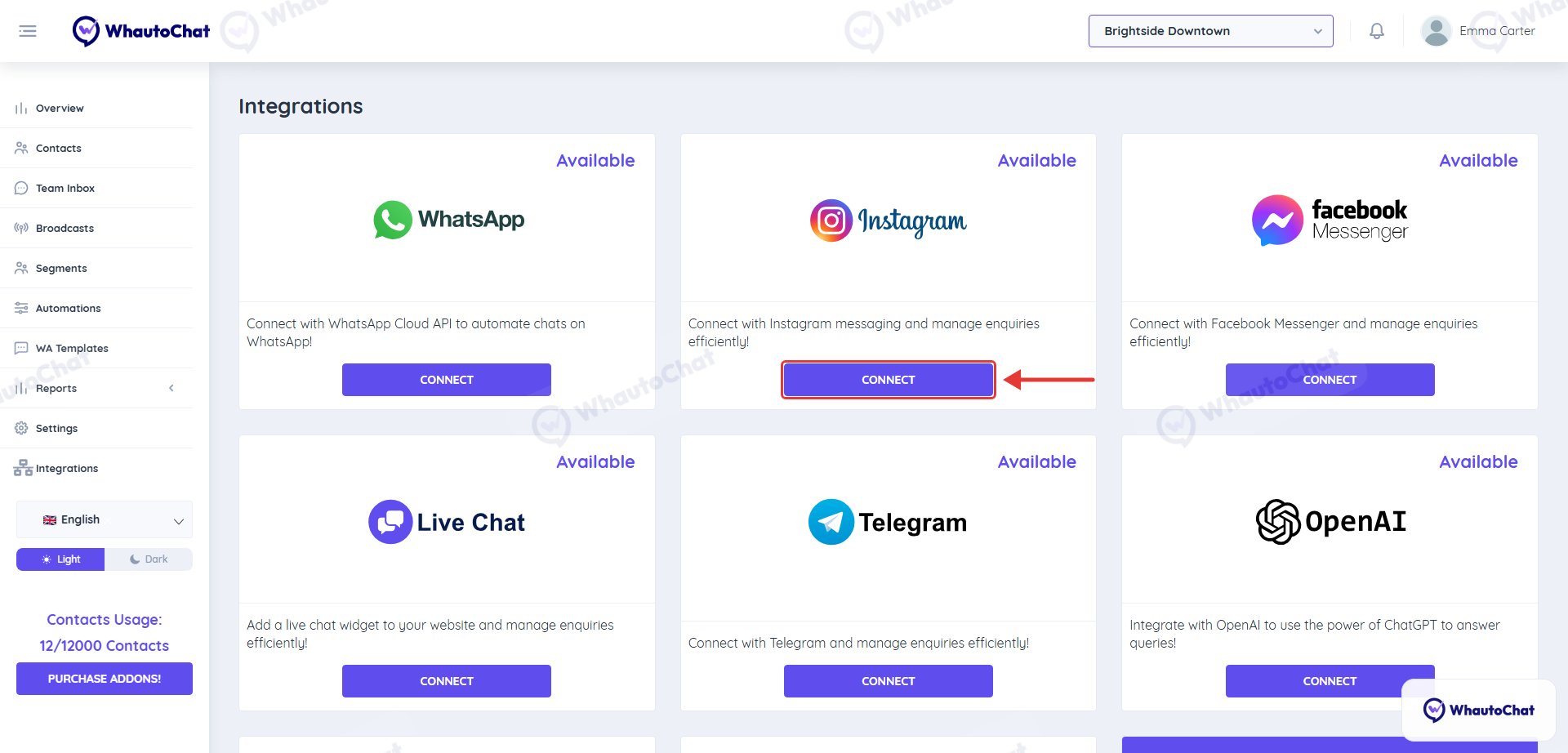
Navigate to Integrations
- Click on the Integrations menu from the sidebar.
- Click Connect on the Instagram card.
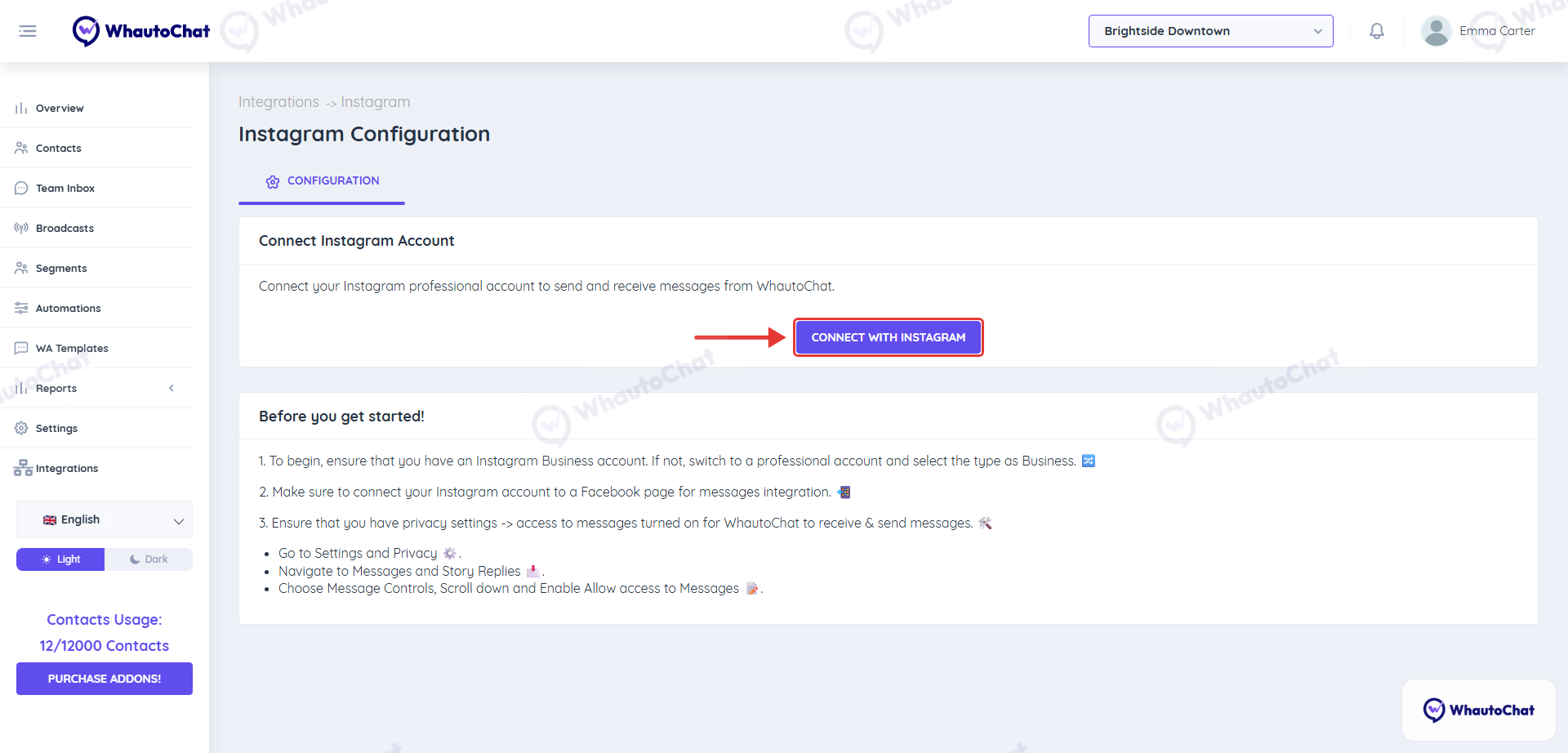
- Click “Connect with Instagram”
- A popup will appear to log in to your Facebook account (linked with your Meta Business).
-
Select Your Facebook Page
- Choose the Facebook page linked to your Instagram account (e.g. Brightside Fitness), then click Next.
-
Select Your Meta Business
- Choose the Meta Business Account your Facebook Page and Instagram are linked to (e.g. Brightside Fitness).
-
Select Instagram Account
- Choose your Instagram Business Account (e.g. abc_business_new) and click Next.
-
Save the Setup
- Click Save. Within a few seconds, the integration status will show as Connected.
-
Finalize the Settings
- Click “Go To Instagram Settings”, select your Instagram page, and click Connect Page to complete the integration.
- The Instagram Configuration page then shows your page under Select Instagram Page with a green check mark. Use Reconnect with Instagram if you have any trouble later.
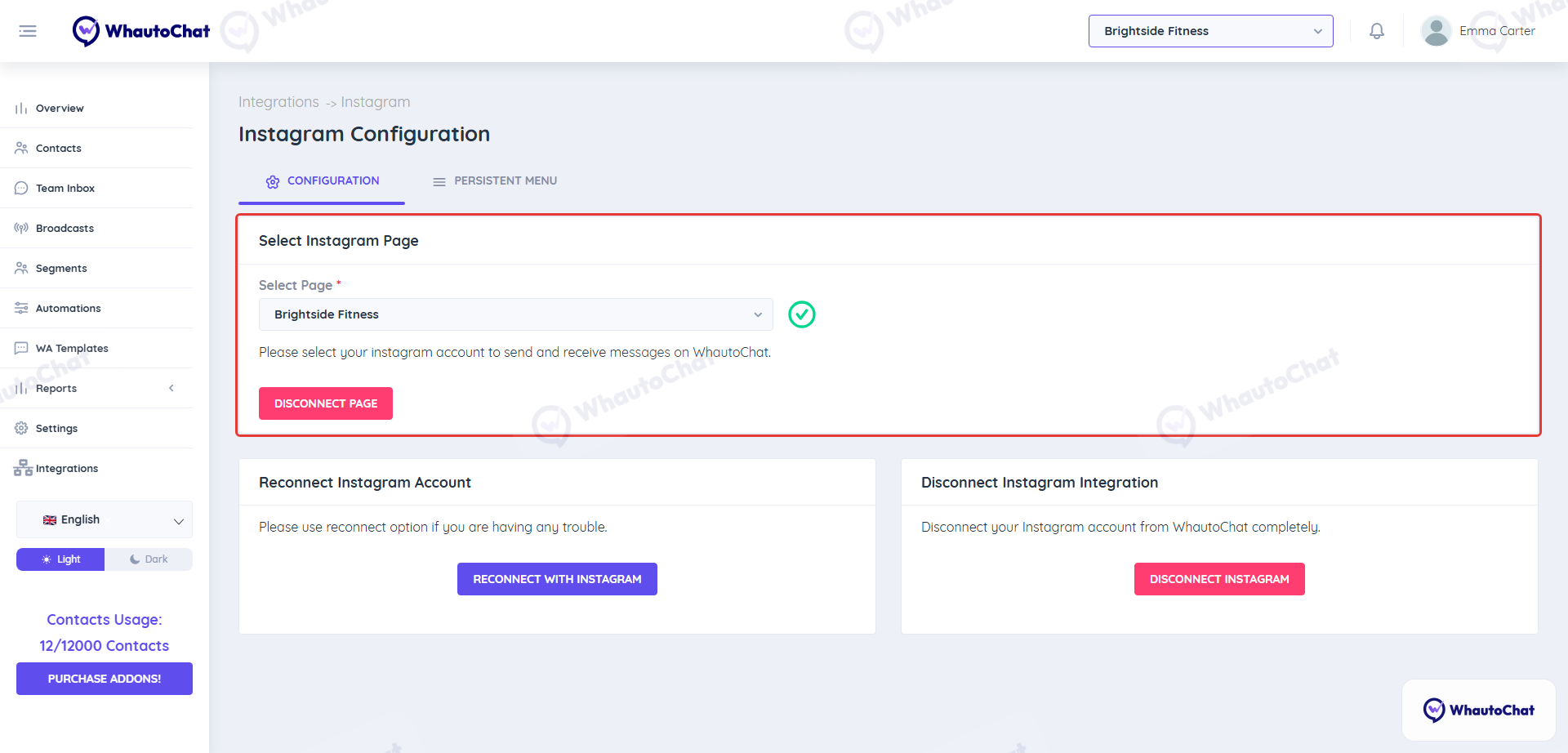
success
✅ You’re Done!
Your Instagram is now connected to WhautoChat.
Send a test message to confirm everything works.
💬 Need Help?
Reach out to our support team anytime – we’re here to help you connect smoothly. support@whauto.chat
For detailed troubleshooting, refer to our Troubleshooting or contact support.