📵 How to Check Undeliverable or Failed WhatsApp Contacts in Whautochat
Identify failed message deliveries and troubleshoot issues quickly inside Whautochat. Here's a step-by-step guide to help you maintain seamless communication with your customers.
🧭 Step-by-Step Instructions
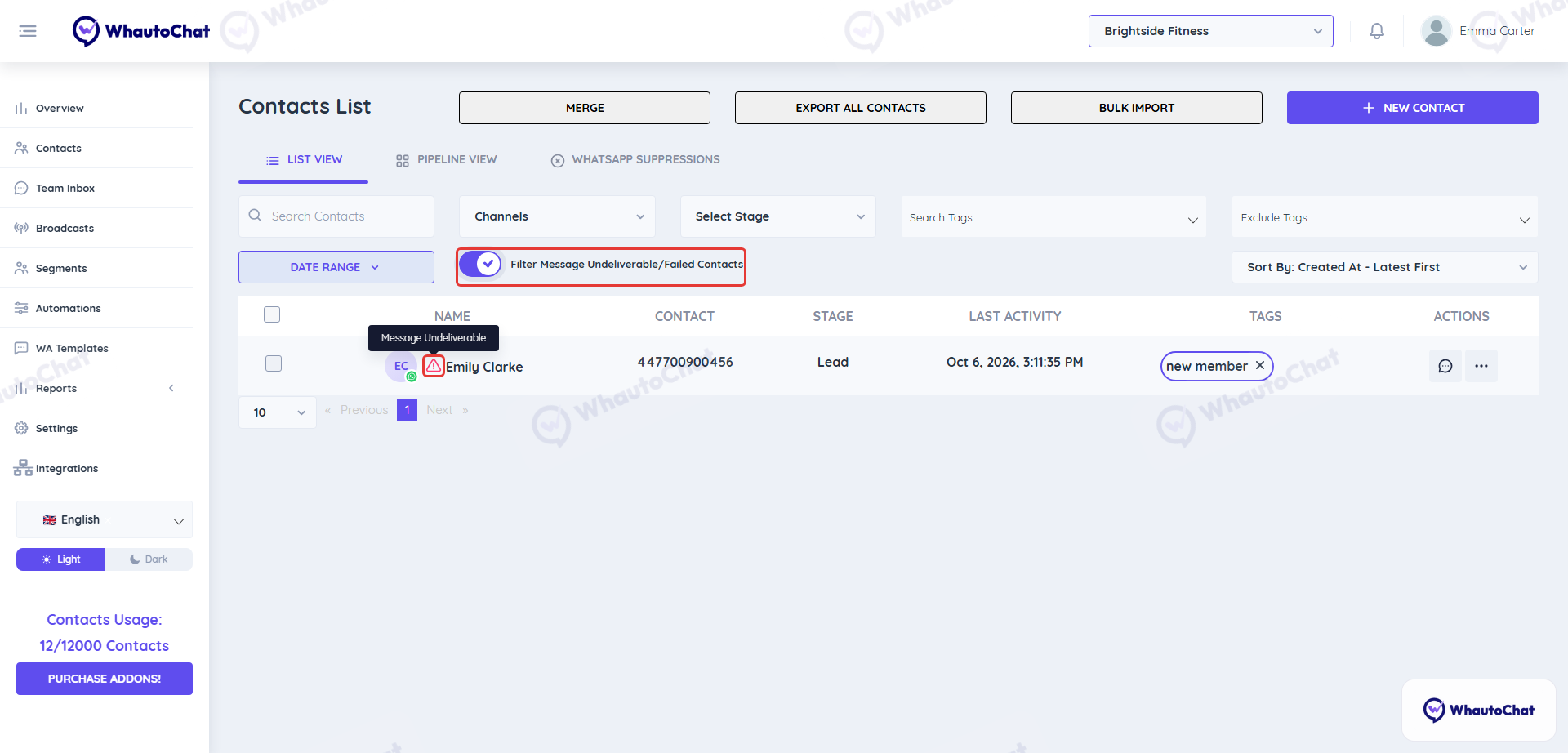
Go to the Contacts Section
Open the Contacts menu from the sidebar in your Whautochat dashboard.
Filter for Failed Contacts
Turn on the Filter Message Undeliverable/Failed Contacts toggle.
This view lists only the contacts where messages failed, each marked with a ⚠️ warning icon. Hover over the icon to see Message Undeliverable.
Check the Error Reason
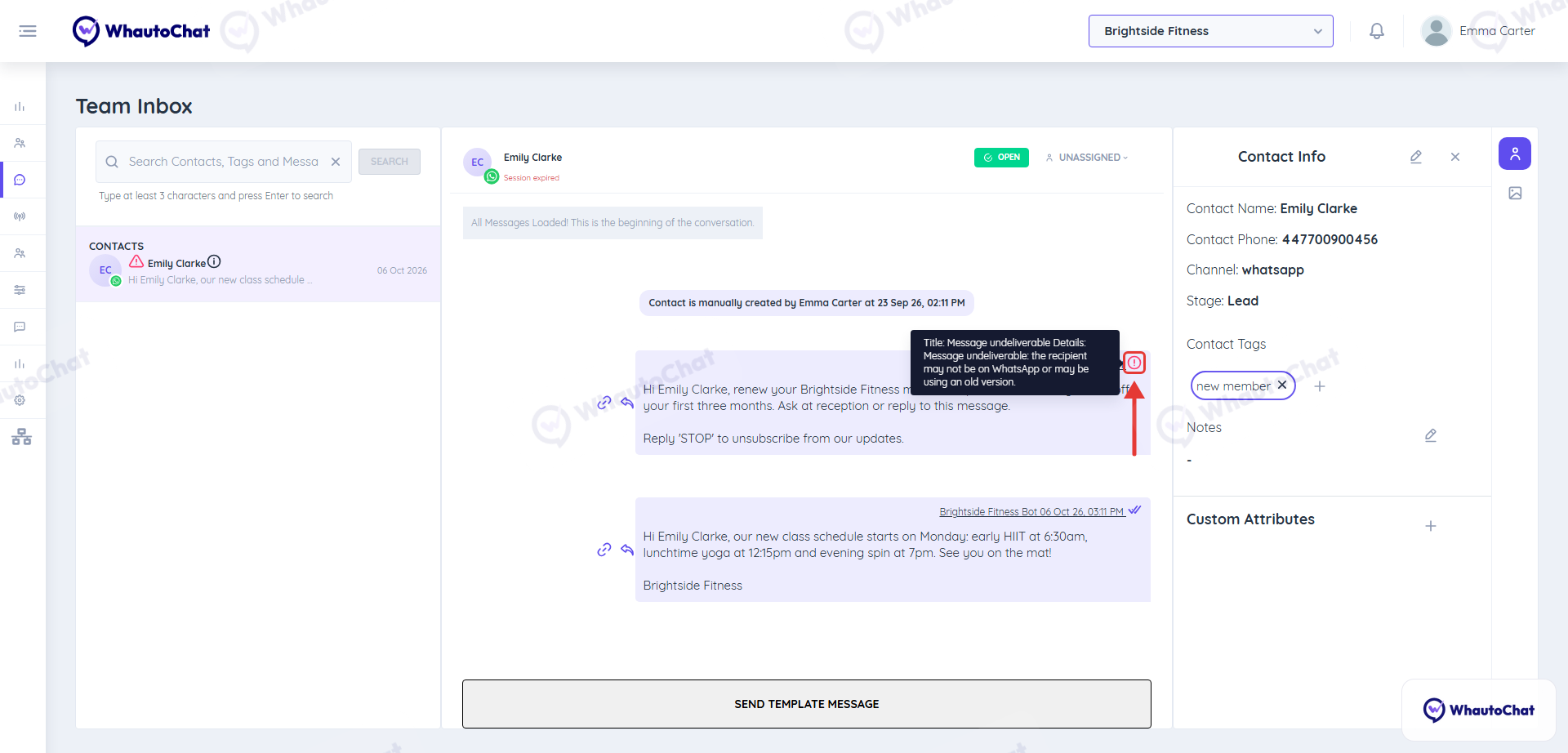
Click the message icon on the contact's row to open the conversation in the Team Inbox. Failed messages show a red exclamation icon: hover over it to see the exact error reason, such as:
- ❌ Invalid phone number
- 🚫 User blocked your business
- ⏳ Outdated WhatsApp version
❓ Common Questions
Q: What can I do to fix undeliverable messages? A: Here are some steps you can take:
- ✅ Correct any invalid numbers in your contact list.
- 🔁 Resend messages once the issue is resolved (e.g., the user updates WhatsApp or unblocks your number).
- 📞 Reach out through other channels if needed to re-establish contact.
🔍 Want to Dig Deeper?
For a full list of possible delivery failure reasons and detailed solutions, check out our WhatsApp Message Failure Guide.
Need further help?If you need more assistance or your issue isn’t covered here, reach out to our support team at support@whauto.chat - we’re here to help!